Install page as app or create shortcut?
Create shortcut places a link on your Home Screen or desktop. Install page as app may give the site a separate app-style window when the browser supports it. Neither button alone guarantees offline pages, notifications or access to every device feature. Those capabilities depend on the website and platform implementation.
On Android Chrome, the menu may offer either installation or a shortcut. On desktop Chrome and Edge, installation can create a separate window. On iPhone Safari, use the Share menu to add a site to the Home Screen. The device steps below show where to look.
Find the steps for your device ↗Start with the distinction
An icon is the beginning, not the whole app.
“Save as an app” can describe three different results. Knowing which one you are offering prevents a shortcut from being mistaken for an offline-ready product. Browser installation and feature support vary by site, device and browser. MDN explains the installability requirements.
Website shortcut
A Home Screen or desktop icon points to a web address. It is useful for returning to a site, but the icon alone does not create offline pages, push notifications or deeper device integration.
Site as an app
Some browsers can open a site in a separate, simplified window. That can feel more focused than a tab. It still depends on the site and browser for data, performance and available features.
Progressive web app
A PWA is a web product deliberately configured for installation. A manifest describes its name, icon and launch behaviour. A service worker can support an intentional offline experience; it does not make every page work offline by itself.
For this website today: saving Paradox Design gives you a browser shortcut or browser-managed app window, depending on your device. We have not designed this site as an offline product or enabled push notifications. Use the steps below as a guide to the broader range of web products.
The visual guide
Choose the device in your hand.
Open the website in the named browser first. The diagrams show where to look; they are original illustrations of the menu path, since labels and placement can differ between software versions.
On a phone, swipe an illustration sideways to see the whole menu or open its full-size image.
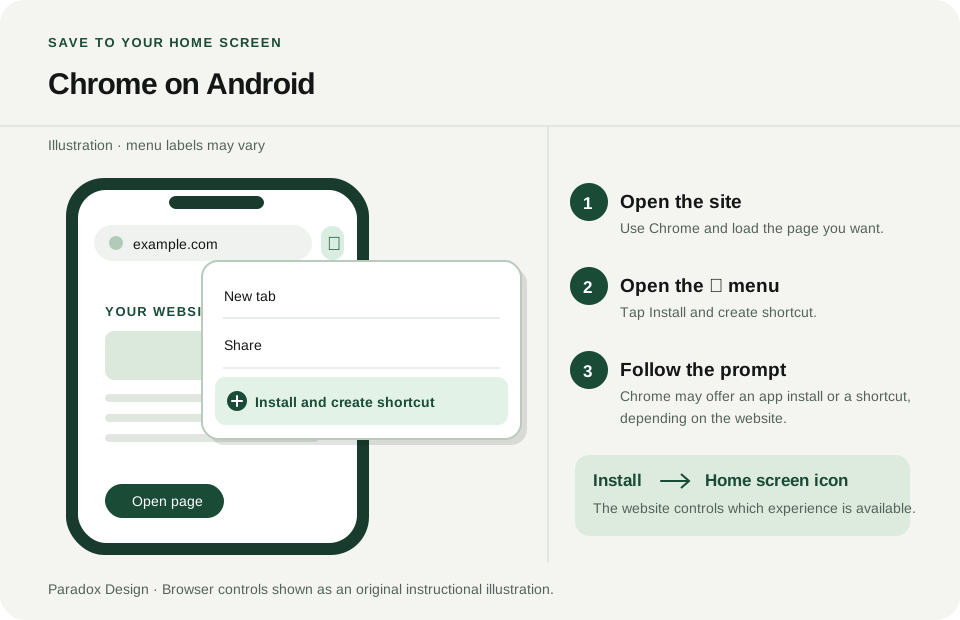
01 / Google Chrome on Android
Add it to your Home Screen.
- Open Chrome and visit the site you want to keep.
- Tap the three-dot menu beside the address bar, then choose Install and create shortcut.
- If Chrome offers Install, select it and follow the prompt. If it offers Create shortcut, name the shortcut and tap Add.
- Return to your Home Screen or app list and open the new icon.
A shortcut with a Chrome badge opens in Chrome. An installable web app may open in a more app-like view; what it can do offline is a separate product decision.
Official steps: install a web app and create a shortcut (Google).
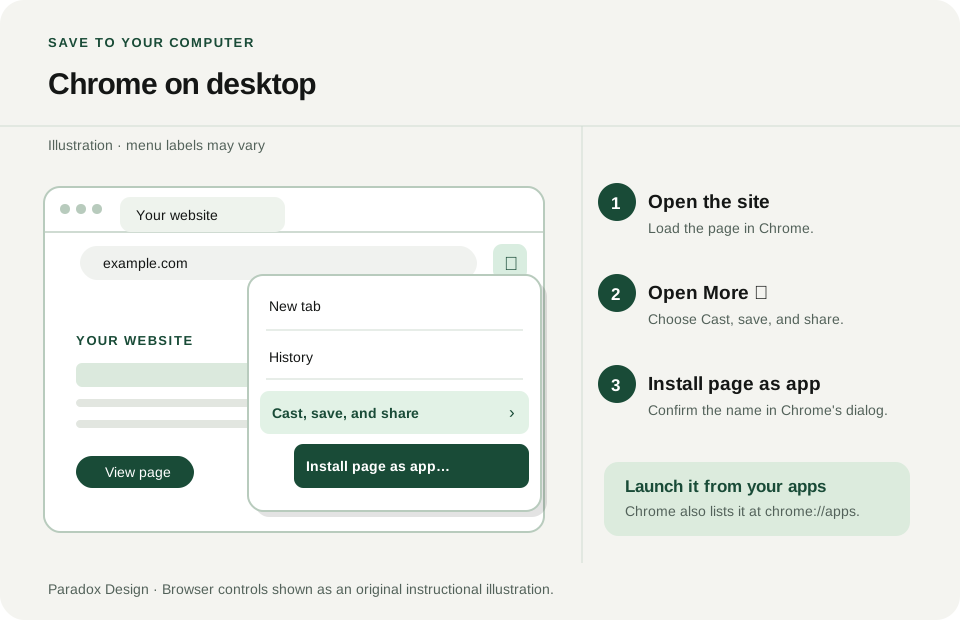
02 / Google Chrome on a computer
Give the site its own window.
- Open the website in Chrome on Windows, Mac, Linux or Chromebook.
- Open the three-dot menu and select Cast, save, and share.
- Choose Install page as app, then confirm the installation. Some sites also show an Install icon in the address bar.
- Find the installed app in your launcher or use chrome://apps to manage it.
Chrome can install a page as an app even when it is not a feature-rich PWA. Test the actual site before promising offline access or notifications.
Official steps: Use web apps in Chrome (Google).
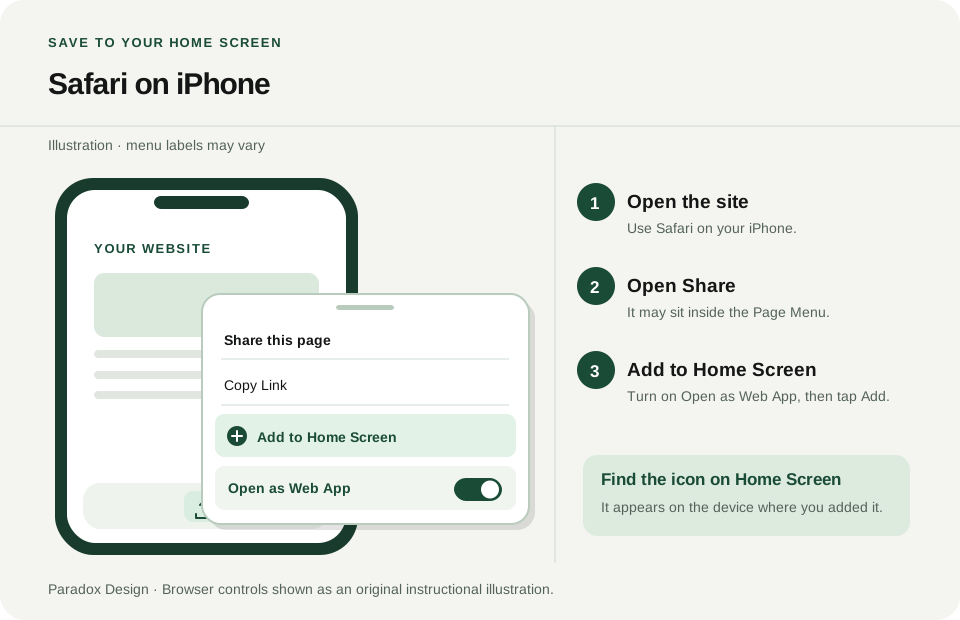
03 / Safari on iPhone
Place a web app on the Home Screen.
- Open the website in Safari.
- Tap the Page Menu, then Share. Depending on your tab layout, you may see the Share button directly.
- Scroll through the actions and choose Add to Home Screen.
- Turn on Open as Web App, then tap Add. Open the new icon from your Home Screen.
If Add to Home Screen is absent, scroll to the bottom of the Share actions and choose Edit Actions. Web push on iPhone requires a supported Home Screen web app, implementation by the site and your permission; adding an icon does not enable it automatically.
On iPad Safari: tap Share → View More → Add to Home Screen, turn on Open as Web App, then tap Add. Using Chrome on iPhone or iPad? Tap its Share button, choose Add to Home Screen, confirm or edit the details, then tap Add. Google notes that the result opens as a web app where one is available, or in the default browser otherwise.
Official steps: Turn a website into an app on iPhone (Apple). Web push on Home Screen web apps (WebKit).
Tablet and alternate browser: Safari on iPad (Apple) and Chrome on iPhone and iPad (Google).
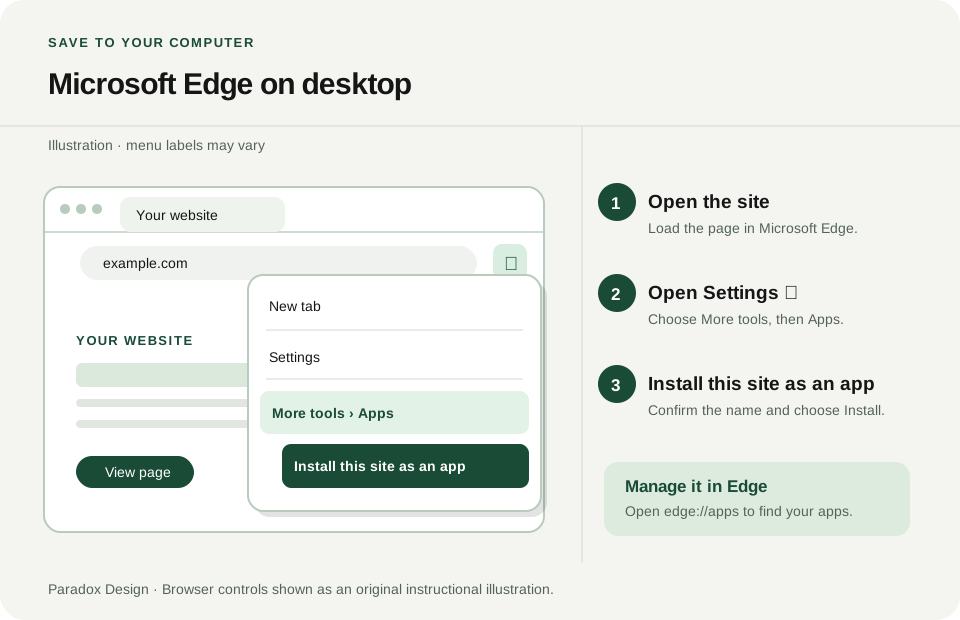
04 / Microsoft Edge on a computer
Install a site from the browser menu.
- Open the website in Microsoft Edge.
- Choose the three-dot Settings and more menu.
- Go to More tools → Apps → Install this site as an app, then confirm. For a PWA, Edge may show an install prompt or icon.
- Use edge://apps to open, pin, manage or uninstall it.
Edge distinguishes a site installed as an app from a richer PWA. Both can gain a dedicated window; extra capabilities depend on the site's implementation.
Official steps: Install and manage apps in Edge (Microsoft).
05 / Safari on Mac
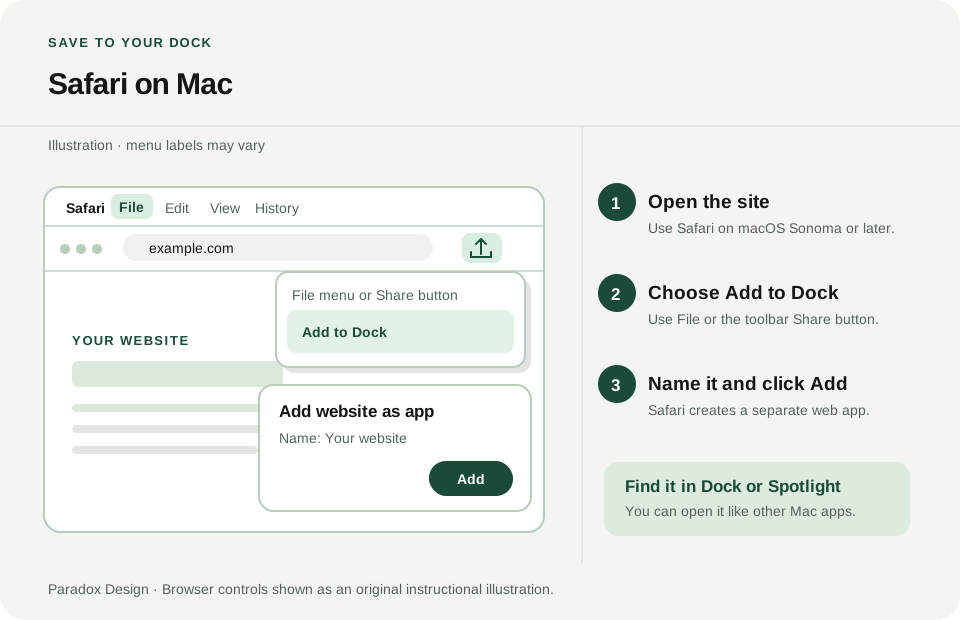
Add the page to your Dock.
- On macOS Sonoma 14 or later, open the webpage in Safari.
- Choose File → Add to Dock, or use Share → Add to Dock in the toolbar.
- Choose a name and click Add. Open the web app from the Dock or Spotlight.
A Safari web app on Mac has a simplified toolbar and keeps its website data separate from the Safari browser. Apple says you are signed in automatically in most cases, though some sites may ask you to sign in again.
Official steps: Use Safari web apps on Mac (Apple).
Missing the option?
- Open the link in the named browser instead of a social media or email app's in-app browser.
- Update the browser and operating system, then check the browser menu again.
- On iPhone, check Edit Actions in the Share sheet. On Android, look for either an install or shortcut action.
- A workplace-managed device may restrict installation. Ask its administrator if the control is unavailable.
- If an icon opens a normal browser tab, you may have made a shortcut. The site may need additional PWA work to provide a standalone experience.
Why teams choose the web
A direct route from a useful idea to a usable product.
For a product whose core tasks fit the web, browser distribution can shorten the path between a working release and a person using it. It does not remove the work of making that product fast, secure, accessible or reliable.
One address to share
A link can open on a phone, tablet or desktop. Visitors can discover the product through search, a referral, a message or a QR code before deciding whether to save it.
Release through the web
Teams can publish web content and functionality without waiting for a store review of each website release. An installed PWA still needs disciplined cache updates and release checks.
Measure the real journey
Use consent-aware analytics to see where people arrive, which task they attempt and where they leave. Improve the experience before spending on another distribution channel.
Build the core once
A responsive web product can share design, content, data and application logic across screen sizes. Platform-specific testing and adaptations still matter.
Keep a direct relationship
Your domain, support path and product communication stay central. You still own hosting, privacy, security, access and the work of helping people find the site.
Add channels later
Web and stores are not mutually exclusive. A PWA can be packaged for some stores when a listing adds value; the requirements depend on the platform.
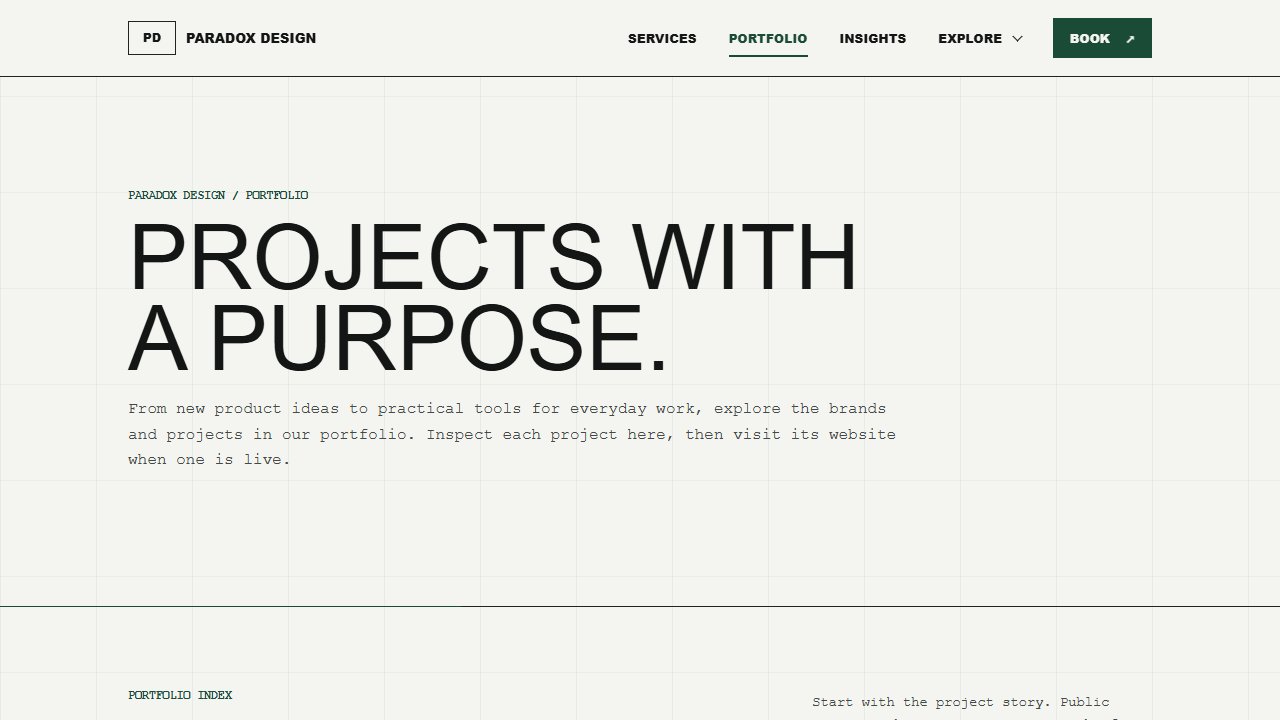
The same URL / Two screens
One product can adapt to the space it has.
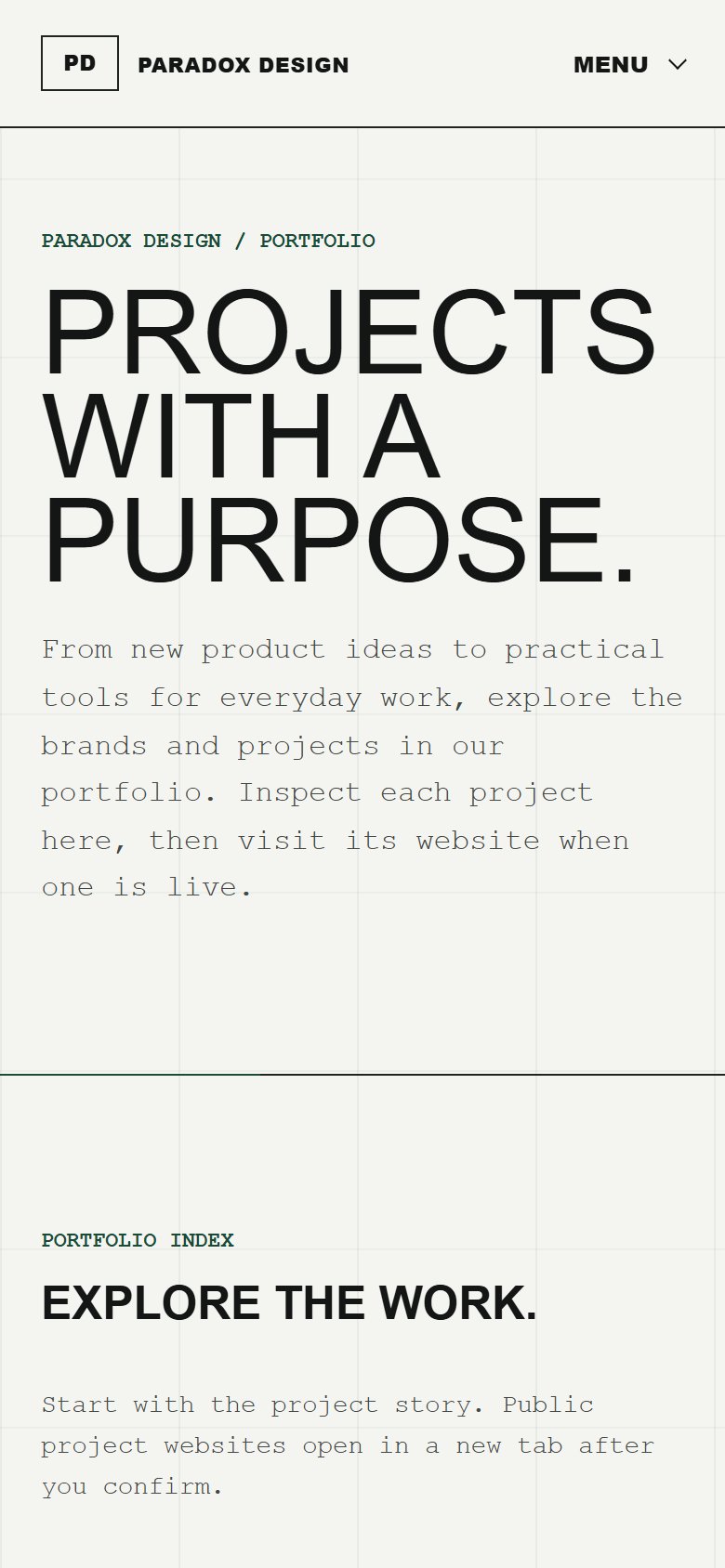
The phone capture above and this desktop capture show the same Paradox Design portfolio page. A shared web core can adapt its layout without maintaining a separate catalogue for each screen; each version still needs testing.
Further reading: web.dev on installation, web.dev on service workers and Microsoft on publishing a PWA to its Store.
The full comparison
Website, shortcut, PWA or store app?
The answer changes with the job your product must do. The store-app column describes a native or cross-platform build; a PWA can also enter selected stores. These are typical capabilities, not promises for every device. Check the exact browser and operating system your audience uses.
| Decision area | Website | Saved shortcut | PWA | Store app* |
|---|---|---|---|---|
| How people get it | Open or share a URL; nothing to install. | Use the browser menu to place an icon on the Home Screen or desktop. | Install from a supporting browser; some PWAs can also be packaged for a store. | Find and install a reviewed listing in a platform store. |
| Launch experience | A normal browser tab. | Often opens in a browser; the exact behaviour depends on the platform. | Can open in a dedicated app-like window when configured and supported. | A dedicated app with its own platform presentation. |
| Offline use | Only what the browser happens to retain; do not rely on it. | The icon itself adds no offline support. | Possible when the team builds, tests and maintains an offline strategy. | Possible when the app deliberately stores what it needs locally. |
| Notifications | Browser and platform rules apply. | A shortcut alone does not add notification code. | Possible on supported platforms with permission and a push implementation; iPhone Home Screen web apps support web push. | Native notification systems are available, with permission and implementation. |
| Updates | Publish to the website. | The linked site changes when its web release changes. | Web releases can update the app; cached assets need careful versioning. | Binary changes usually follow the store's submission and update process. |
| Discovery | Search, links, referrals and your own channels. | The same web discovery; visitors must learn the save step. | The same web discovery, plus any store channel you choose to support. | Store search, listings, ratings and editorial features, as well as your own channels. |
| Device features | Web APIs supported by that browser and device. | Usually the same capabilities as its browser context. | Web APIs, with platform-specific differences to test. | A broader path to platform APIs and background behaviour when the product needs them. |
| Delivery overhead | Hosting, security, performance, accessibility and browser testing. | The web work plus clear installation guidance. | The web work plus manifest, icons, cache strategy and device-specific QA. | Platform builds, accounts, policy checks, review, release operations and device QA. |
* Native or cross-platform build. On a narrow screen, scroll the table sideways to compare all four options.
Website
Open the link
Advantages: immediate access, shareable URLs, search visibility and a direct web release path.
Constraints: repeat visitors must find their way back, and advanced app behaviour still has to be built.
Saved shortcut
Keep the icon
Advantages: low effort for the visitor and fast access to a familiar page.
Constraints: it may reopen a browser tab and does not add offline, push or device features by itself.
Progressive web app
Build an app-like web core
Advantages: a focused launch experience, direct web distribution and optional offline or push features where supported.
Constraints: careful caching, updates, permission design, browser differences and cross-device QA become your responsibility.
Store app
Use the platform channel
Advantages: store discovery, ratings, platform billing options and a path to deeper native integration.
Constraints: accounts, policies, reviews, builds and ongoing platform-specific maintenance.
Commercial reality
No store requirement does not mean no delivery cost.
A browser-distributed product still needs design, HTTPS hosting, maintenance, security, accessibility, support and testing. Store distribution adds account, build, policy and review work. As checked in October 2026, the Apple Developer Program lists US$99 per membership year and Google Play lists a US$25 one-time registration fee; payment rules, taxes and regional terms require a separate review for your product.
Stores can repay that effort through discovery, user trust, reviews, platform billing and native distribution. Apple also expects an App Store app to offer more than a repackaged website. See Apple's App Review Guidelines.
A decision rule
Start with the task, then choose distribution.
When finding, reading and sharing come first.
Marketing pages, public information, catalogues and early product validation benefit from a URL that works immediately. Add a shortcut guide if repeat visitors want quicker access.
When people return to do useful work.
Scheduling, dashboards, field forms, internal tools and repeated customer tasks can benefit from an app icon, focused window and intentionally designed offline or notification features where supported.
When the platform channel is part of the product.
Prioritise this route when store discovery, platform billing, device-specific capabilities or deeper background behaviour are central to the experience. Plan for store policy and release operations from the start.
When you need evidence before committing to more.
Launch a strong web core, test the tasks and audience, then add PWA capabilities or store packaging if the evidence supports it. Microsoft documents a PWA path to its Store; Google documents an Android Trusted Web Activity path. Each platform has its own rules.
Platform references: Microsoft's distribution paths, Google's Trusted Web Activity guidance and Apple's App Review Guidelines.
For the team building it
The work behind a genuinely useful web app.
Installation is a distribution detail. The product succeeds when its core task is clear, dependable and easy to recover when the network or device behaves differently than expected.
Explore technical delivery- Choose the core task. Define what people should be able to complete on a small screen before adding an install prompt.
- Make the web version work first. Use responsive layouts, semantic controls, keyboard access, readable content and sensible loading states.
- Serve it securely. Use HTTPS, sensible authentication and permissions, privacy notices and server-side validation.
- Describe the app. Add a web app manifest with appropriate name, icons, start URL, scope and display mode. Test how icons and titles appear on each platform.
- Design for disconnection. If offline matters, use a service worker and deliberate cache/data rules, a visible offline state and a safe way to reconcile changes.
- Check device capabilities. Detect features at runtime. Test camera, files, notifications and background behaviour on the actual target devices instead of assuming browser parity.
- Respect the install moment. Explain the benefit, give manual steps where needed and keep the site fully usable without installation.
- Test updates and recovery. Verify first launch, returning use, sign-in, cache refreshes, expired sessions, failed requests and uninstall/reinstall flows.
- Measure without over-collecting. Track helpful journey events and drop-off points while keeping form contents and sensitive data out of analytics.
- Revisit distribution. Decide whether a store listing adds enough reach or platform value to justify packaging, policy and release overhead.
Common questions
What changes after I tap Add?
Will the website work without internet?
Only if its developers have built and tested an offline experience for the tasks you need. A shortcut or install icon cannot supply missing content or sync rules. Chrome notes that some web apps work only partly offline; service workers are one tool teams can use to design the experience.
Can an iPhone web app send notifications?
Yes, supported Home Screen web apps on iOS 16.4 or later can use web push when the site implements it and you grant permission after a user action. It is not automatic for every saved website. Apple's developer guide covers the requirements.
Do users need a Google Play or Apple App Store account?
Not to open a website or save a browser shortcut. A browser-installed PWA also does not require a store download. A store listing is a separate distribution choice for the product owner.
Is a PWA the same as a native app?
No. A PWA uses web technology and browser-supported capabilities. A native or cross-platform store app can use a different set of platform APIs and distribution systems. Both can have an icon and a focused interface; the underlying capabilities and obligations differ.
Can we publish a PWA to a store later?
In some ecosystems, yes. For example, Microsoft provides a packaging and submission path for PWAs. Other stores have distinct technical and policy requirements; Apple's minimum-functionality rule means a simple website wrapper is not a guaranteed App Store product.
What if I only want quick access to one page?
A normal bookmark or Home Screen shortcut is often enough. Build a PWA when repeated tasks, a focused launch experience or deliberately implemented capabilities justify the extra development and testing.
Source notes
Check the platform instructions at the source.
These are the primary references used for the menu paths and capability claims in this guide. Recheck them when a browser or operating system changes.
- Google Chrome Help: Android web apps
- Google Chrome Help: Android shortcuts
- Google Chrome Help: desktop web apps
- Apple Support: iPhone web apps
- Apple Support: iPad web apps
- Google Chrome Help: iPhone and iPad shortcuts
- Apple Support: Safari web apps on Mac
- Microsoft Support: Edge apps
- Chrome for Developers: Trusted Web Activities
- MDN: making PWAs installable
- web.dev: service workers and offline behaviour
- WebKit: web push for iOS and iPadOS web apps
- Apple Developer: web push
- Apple Developer: App Review Guidelines
Build the right thing
Make the next useful step easy to reach.
We can help assess whether a responsive website, installable web app or store release fits your audience, workflow and technical constraints.